How to Set Multiple Job Alerts in South Africa
31 October 202615 min read

Contents18 sections
- 1TL;DR
- 2Table of Contents
- 3Why one alert is rarely enough
- 4How many job alerts should you set?
- 5Step by step: setting up alerts for different searches
- 6Can one alert cover multiple keywords?
- 7Tailoring alerts for remote, freelance, part-time and entry-level roles
- 8How often should alerts arrive?
- 9Perspective: why we built daily WhatsApp alerts
- 10Managing, pausing and stopping alerts
- 11What to do when alerts are too broad, too narrow or silent
- 12How job alerts differ from Google Alerts
- 13Putting alerts to work: the first week plan
- 14Get new vacancies every morning without sign-ups
- 15Common mistakes to avoid
- 16FAQ
- 17Sources
- 18Recommended
How to Set Multiple Job Alerts in South Africa
Set one alert per focused search, not one giant alert for everything. Split by role, then by location, then by job type (full-time, part-time, freelance, entry-level, remote). Aim for four to six tight alerts, check that each one returns relevant vacancies, and prune the ones that do not. That keeps your phone and inbox useful instead of overwhelming.
Below you will find the exact way to split your searches, worked examples for South African job seekers, how often alerts arrive, and how to fix alerts that are too broad or too quiet.
TL;DR
- Create a separate alert for each distinct search (one job title plus one location), rather than stuffing many titles into one alert.
- Keep two or three broad alerts for discovery and two or three narrow ones for the roles you really want.
- Use filters for job type, experience level and date posted so entry-level, part-time, freelance and remote roles do not get mixed up.
- Review your alerts every two weeks: delete the noisy ones, tighten the vague ones, add new ones when your search shifts.
- Pair email alerts with a daily WhatsApp feed so you see new vacancies in the morning without signing up or uploading a CV.
Table of Contents
- Why one alert is rarely enough
- How many job alerts should you set?
- Step by step: setting up alerts for different searches
- Can one alert cover multiple keywords?
- Tailoring alerts for remote, freelance, part-time and entry-level roles
- How often should alerts arrive?
- Perspective: why we built daily WhatsApp alerts
- Managing, pausing and stopping alerts
- What to do when alerts are too broad, too narrow or silent
- How job alerts differ from Google Alerts
- Putting alerts to work: the first week plan
- Get new vacancies every morning without sign-ups
- Common mistakes to avoid
- FAQ
- Sources
Why one alert is rarely enough
Most job alert tools work from a single saved search. That search holds one set of words, one place and a few filters. If you cram “admin, receptionist, data capturer, Pretoria, Johannesburg, Durban” into one box, the tool either returns nothing, returns everything, or ignores half of what you typed.
The fix is simple: treat each alert as one question. “Show me retail jobs in Germiston.” “Show me part-time admin work near me.” “Show me entry-level finance roles anywhere in Gauteng.” One question, one alert.
A South African job-seeker guide describes the same workflow: search by role and location, then activate an alert for each focused search rather than relying on one search to do everything. That is the core of setting multiple alerts well.
There is also a practical reason. When an alert is tight, you can tell at a glance whether it works. If a “driver jobs in East London” alert starts delivering warehouse roles in Durban, you know exactly which alert to fix. With one catch-all alert you cannot tell what went wrong.

How many job alerts should you set?
There is no magic number, but there is a sensible range. Fewer than three and you will miss roles that use different titles. More than eight and you will start ignoring the messages, which defeats the purpose.
A workable structure looks like this:
| Alert type | Purpose | How many | Example |
|---|---|---|---|
| Broad | Catch roles you did not think of | 2 to 3 | “Admin jobs” in your province |
| Narrow | Target the roles you really want | 2 to 3 | “Logistics coordinator” in Germiston |
| Fallback | Cover a plan B, such as part-time or contract work | 1 to 2 | “Part-time retail” in your town |
The JobReady guide recommends combining broad and specific alerts rather than relying on one search, and that matches the table above. Broad alerts keep you from missing a vacancy because the employer chose an unusual job title. Narrow alerts keep the most relevant roles at the top of your attention.
If you are job-hunting urgently, lean towards more alerts and a daily schedule. If you are employed and only watching the market, three or four weekly alerts are plenty.
Step by step: setting up alerts for different searches
The screens differ from site to site, but the logic is always the same. Here is the method that works anywhere.
- List your target roles. Write down three to five job titles you would accept. Include the plain version (“cashier”) and the variation employers use (“till operator”, “retail assistant”).
- List your locations. Pick your home city, the next city or town within commuting distance, and, if you are open to it, a province-wide or remote option.
- Pick your job types. Full-time, part-time, contract, freelance, internship or learnership. Decide which you would take now and which only later.
- Combine them into separate searches. One title plus one location plus one job type is a good unit. You do not need every combination, only the ones that matter.
- Run the search first. Look at the results. If the first page is mostly irrelevant, adjust the words or filters before you turn it into an alert.
- Save it as an alert and choose the frequency. Daily for urgent searches, weekly for background ones.
- Repeat for the next search. Name or note each alert so you remember what it is for.
A 2026 South African guide to one major job site describes the same flow: run the search, choose the email alert option, pick daily or weekly delivery, then manage or delete alerts in account settings. Whichever site you use, the habit of searching first and saving second is what keeps alerts relevant.
Worked example: a recent graduate in Gauteng
Thabo has a finance diploma and lives in Germiston. He is happy to commute to Johannesburg and Pretoria. His alerts might be:
- “Junior accountant” or “finance clerk”, Germiston, full-time
- “Finance assistant”, Johannesburg, entry-level
- “Bookkeeper”, Gauteng, part-time (a fallback while he waits for a permanent role)
- “Admin assistant”, Pretoria, entry-level (a broad discovery alert)
Four alerts, each answering one question. If alert 4 sends too much, he narrows it. If alert 1 goes quiet, he widens the location.
Worked example: a student looking for part-time work
Lerato studies in Cape Town and needs weekend and evening hours. Her alerts could be:
- “Retail assistant”, Cape Town, part-time
- “Waitron” or “barista”, Cape Town, part-time
- “Call centre agent”, Cape Town, part-time or shift work
- “Freelance” or “gig” roles in her field, remote
The job-type filter does the heavy lifting here. Without it, she would be buried under full-time vacancies she cannot take.
Can one alert cover multiple keywords?
Sometimes, but do not count on it. Many tools accept an “OR” between keywords, or let you separate terms with commas, but behaviour varies. Job seekers on forums regularly report that commas do not work as expected or that a tool seems to allow only one keyword per alert. If your multi-keyword alert returns nothing, or returns an odd mix, that is usually why.
The safe approach:
- Use one keyword or short phrase per alert when the tool does not clearly explain its rules.
- Use quotation marks around multi-word titles, such as “customer service”, so the tool treats them as one phrase. Check the help page of the site you use to confirm it supports this.
- Only combine synonyms (“driver” and “delivery driver”) when you have tested that the results look right.
If you are not sure, create two alerts. Duplicates are easy to delete, but missed vacancies are not recoverable.
Tailoring alerts for remote, freelance, part-time and entry-level roles
These four categories are where most alerts go wrong, because the words employers use are inconsistent.

Entry-level. Use the experience-level filter if the site has one. Also set a separate alert with words such as “junior”, “trainee”, “assistant” or “graduate”. The JobReady guide suggests using filters such as experience level, job type and date posted before saving an alert, which helps keep senior roles out.
Part-time. Filter by job type first. Then add a location tight enough that you could actually reach the workplace by the hours stated.
Freelance and gigs. These are posted less often and disappear fast, so a daily alert is worth it. Use words such as “freelance”, “contract”, “temporary” and “ad hoc”.
Remote. Keep remote alerts separate from local ones. A remote alert with no location should be its own search, not an add-on to your city alerts. We cover this in more detail in our guide to remote job alerts via WhatsApp and email.
If you are comparing cities, our piece on city job alerts in South Africa shows how to set local alerts for each place you could realistically work.
How often should alerts arrive?
Frequency is the second lever after the search itself. Common options are immediate, daily and weekly.
- Immediate suits roles where being among the first applicants matters, such as retail, driving and call-centre hiring.
- Daily is the best default for an active search. You get a digest once a day and can act on it with your morning coffee.
- Weekly suits broad discovery alerts and long-term watching.
The options differ by site. The JobReady guide notes that some alerts can be scheduled daily or weekly, while others are daily digests or immediate. Check the settings of each service rather than assuming.
A good rule: narrow alerts daily, broad alerts weekly. That way your most important searches reach you fast, and the exploratory ones do not clutter your day.
Perspective: why we built daily WhatsApp alerts
We built FindJobsZA because we kept hearing the same complaints from South African job seekers: too many sign-ups, too many CV uploads, and too many alert emails that arrive after the vacancy has already filled.
Our view is that an alert should do one job: tell you early that something relevant exists. That is why we focus on local listings you can browse by city, province or job type with no registration, and why we send new listings by WhatsApp every morning. Most people already check WhatsApp first thing, so the vacancy reaches you where you already are.
Our advice is to treat any alert system, ours included, as a set of small, clear searches. Pick your city, pick your job type, and keep each feed focused. The less you have to sift through, the more applications you will actually send.
We also think safety matters. Job scams spread easily through unmoderated WhatsApp groups. Our approach is designed to give you listings in one place, so you do not have to rely on forwarded messages of unknown origin.
Nkosi
Managing, pausing and stopping alerts
Alerts are not a set-and-forget tool. A fortnightly review takes five minutes and keeps the whole system healthy.
Every two weeks, go through each alert and ask:
- Did it send anything relevant in the last 14 days?
- Did I apply to anything it sent?
- Is it sending the same vacancies as another alert?
If the answer to all three is no, delete it or rewrite it. Most sites let you pause, edit or delete alerts from account or settings pages. Some let you unsubscribe from a link at the bottom of each email.
When you land a job or take a break, pause rather than delete. You will save the time of rebuilding the set later.
What to do when alerts are too broad, too narrow or silent
Too broad (dozens of irrelevant jobs).
- Add a location or shrink the radius.
- Add a job-type or experience filter.
- Replace a general word (“manager”) with a specific title (“store manager”).
- Split the alert into two narrower ones.
Too narrow (nothing arrives).
- Remove one filter at a time and test.
- Add a synonym as a second alert.
- Widen from a town to a metro or province.
Irrelevant results that keep appearing.
- Check whether the tool treats your phrase as separate words. Try quotation marks.
- Look at the titles of the vacancies it sends. Those words are what employers actually use, so copy them into your alert.
Duplicates across alerts.
- Overlap is normal when you combine broad and narrow alerts. If it annoys you, make the broad alert weekly.
How job alerts differ from Google Alerts
People sometimes use a general alert tool to track vacancies. It can work for one purpose: watching the web for a specific employer or phrase. Google’s own help page explains that you enter a topic you want to follow and choose how you receive the results.
But a general web alert is not a job alert. It tracks web pages, not structured vacancies, so it will not understand filters like job type, experience level or province, and it may send you news articles about an industry instead of live roles. Use it for monitoring a particular company’s news, and use a job platform for actual vacancies.
Putting alerts to work: the first week plan
Alerts only help if you act on them. Here is a simple routine.
- Day 1. Create your alerts, starting with the narrow ones.
- Days 2 to 4. Open every alert as it arrives. Apply the same day if the role fits. Note which alerts produce good matches.
- Day 5. Delete or rewrite any alert that sent nothing useful.
- Day 7. Add one alert for a role or place you had not considered.
Keep a short document ready with your CV, a short cover message and your references, so applying takes minutes. Our job search checklist for South Africa walks through what to prepare.
Using local pages as live alerts
City and category pages work like alerts you can check at any moment. If you want retail work, for example, you can look directly at retail jobs in Germiston or retail jobs in Newcastle. Logistics seekers can check logistics jobs in Johannesburg or logistics jobs in East London. Teachers can look at teaching jobs in Cape Town or teaching jobs in Pretoria.
Checking two or three such pages each morning, alongside your alerts, gives you a second safety net if an alert misfires.
Get new vacancies every morning without sign-ups
FindJobsZA lists jobs across South Africa that you can browse by city, province or job type, with no CV upload and no registration. New listings also arrive by WhatsApp each morning, so you can follow the cities and categories you care about alongside your other alerts. Categories include sales, retail, customer service, admin, logistics, driver, human resources and finance.
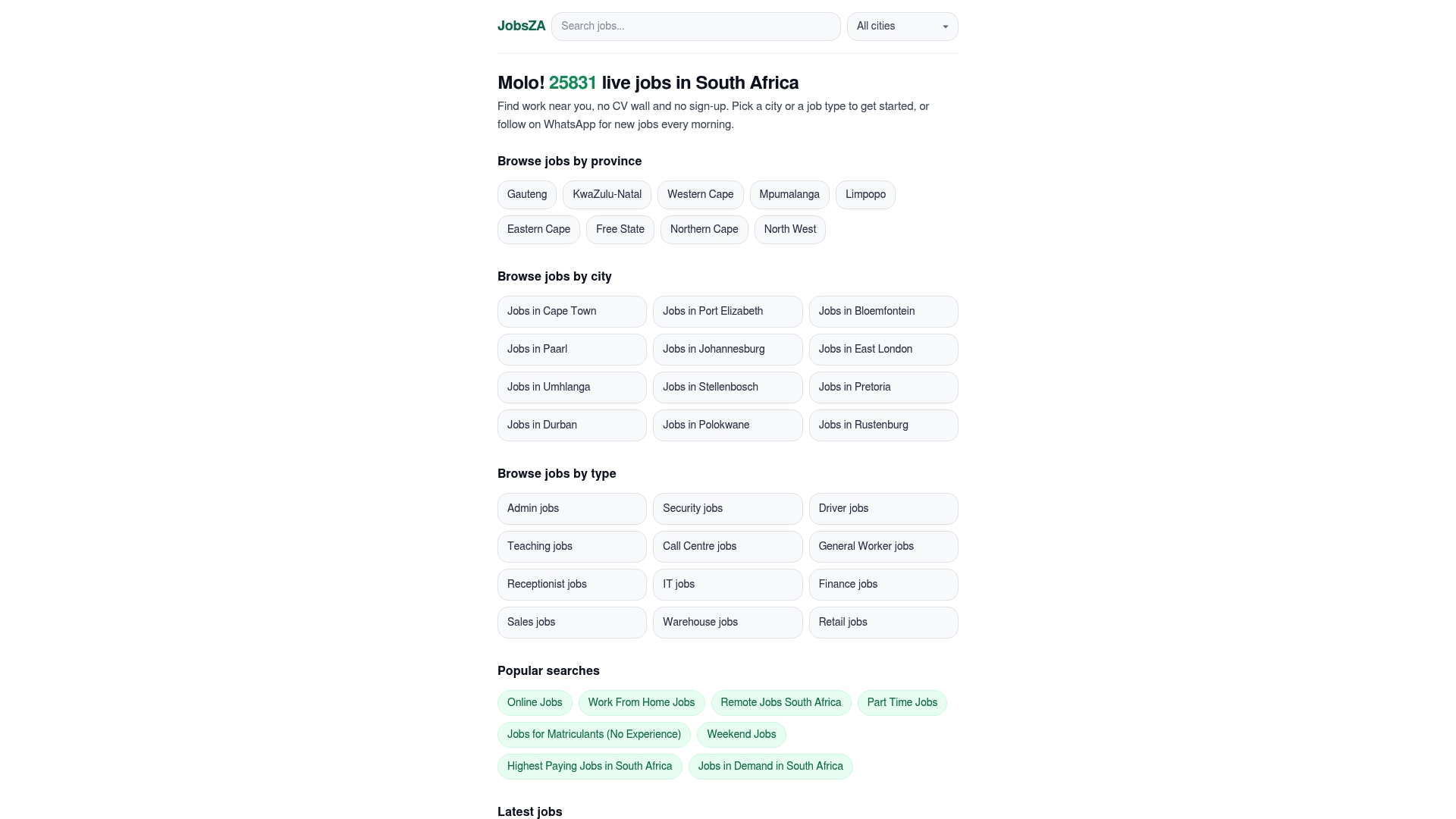
Start on the FindJobsZA home page, pick your city and job type, and build your morning routine from there.
Common mistakes to avoid
- Using only job titles. Employers describe the same role in different ways. Cover two or three variants across separate alerts.
- Ignoring location. An alert with no place attached produces vacancies you cannot reach.
- Never reviewing. A stale alert is worse than none, because you learn to ignore it.
- Setting everything to immediate. You will burn out on notifications within days. Reserve immediate for your top two searches.
- Waiting to apply. Popular vacancies attract many applicants quickly. Apply while the listing is fresh.
- Trusting unverified forwards. If a vacancy asks for payment, or for ID and banking details before any interview, treat it as suspect and step away.
FAQ
Can I set more than one job alert at the same time?
Yes. Most job sites let you save several searches, each as its own alert. Create one per role-and-location combination, and give each its own frequency. Check the account settings of the site you use for any limit on the number of alerts.
How many job alerts is too many?
For most people, more than six to eight starts to cause alert fatigue. A good balance is two or three broad alerts and two or three narrow ones. If you stop opening the messages, you have too many, so merge or delete the weakest.
Should I use one alert with many keywords or separate alerts?
Separate alerts are safer. Many tools handle only one phrase well, and mixed keywords often return a muddle of unrelated roles. Separate alerts also show you which search works and which does not.
How do I stop or pause job alerts?
Open your account or notification settings on the job site and pause, edit or delete the alert there. Email alerts usually include an unsubscribe link at the bottom. For WhatsApp updates, you can mute or leave the feed at any time through WhatsApp itself.
What if my alerts send jobs that do not fit?
Add a location, a job-type filter or a more specific title, then look at the titles the alert sends and copy the employers’ wording into your search. If it is still noisy, split it into two narrower alerts.
Sources
- Learn, JobReady ZA: tips for South African job seekers
- Indeed South Africa guide 2026 on CitizenHelp
- Create an alert, Google Search Help
Recommended
Start with your city.
31 716 live jobs, filtered by city and suburb. No sign-up wall, no CV upload just to look.